實現病人數據自動分析建模,Python能做的比你想象得更多
 加入技術交流群
數據表格整理等作為我們工作學習生活中最為繁瑣和無趣的任務之一,消耗掉了我們的大多數時間。而今天我們就將利用Python對病人數據進行建模,并自動生成表單,從而節省了我們醫務工作者的大量時間。
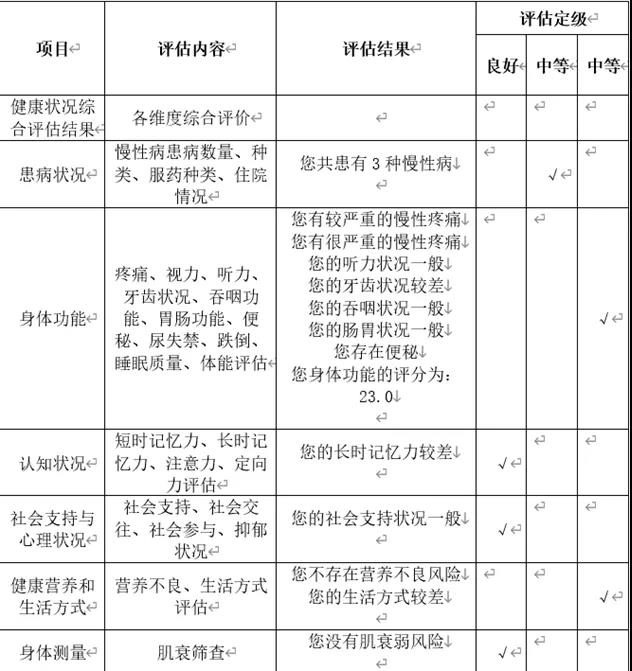
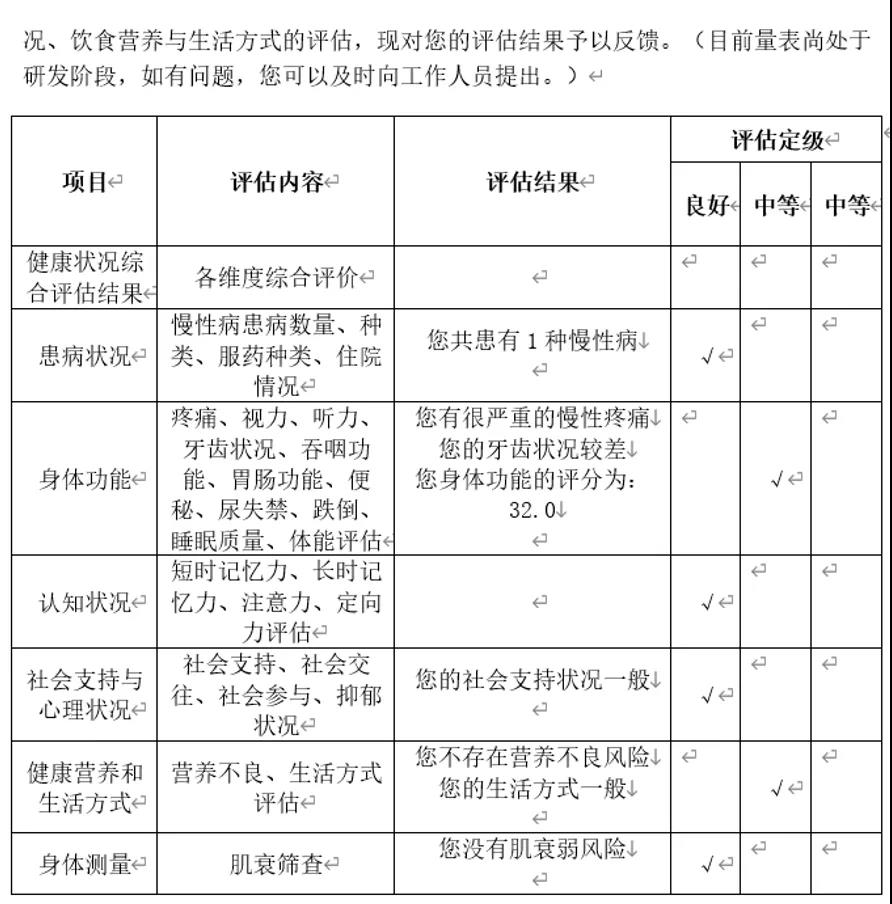
最終生成的表單數據如下可見,每個病人分別以單獨的Word表單保存,一鍵分析Excel數據,生成表單,并自動給出病人具體的評估。
實驗前的準備
首先我們使用的Python版本是3.6.5所用到的模塊如下:
· openpyxl庫用來讀取Excel表格數據。
· datetime模塊用來對時間處理和生成。
· Docx庫即為Python-docx包,這是一個很強大的包,可以用來創建docx文檔,包含段落、分頁符、表格、圖片、標題、樣式等幾乎所有的Word文檔中能常用的功能都包含了,這個包的主要功能便是用來創建文檔。
下面我們需要將需要處理的數據文件放到同一目錄下,部分文件數據如下圖:
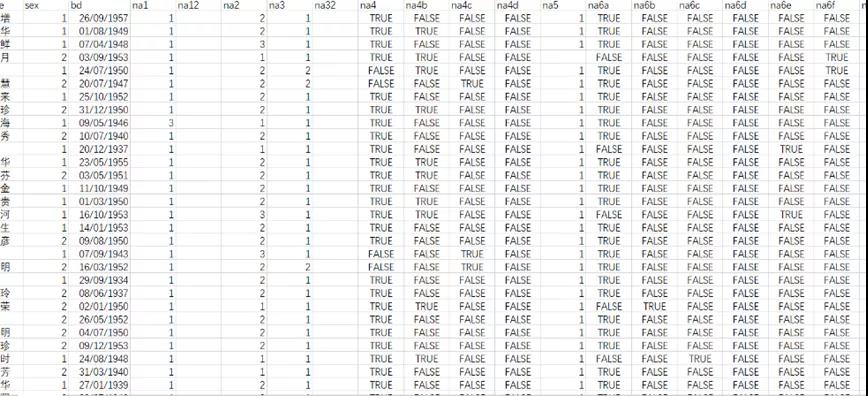
其中需要用到的文件命名為data.xlsx。
表格生成
我們需要生成的固定項如下表所見:
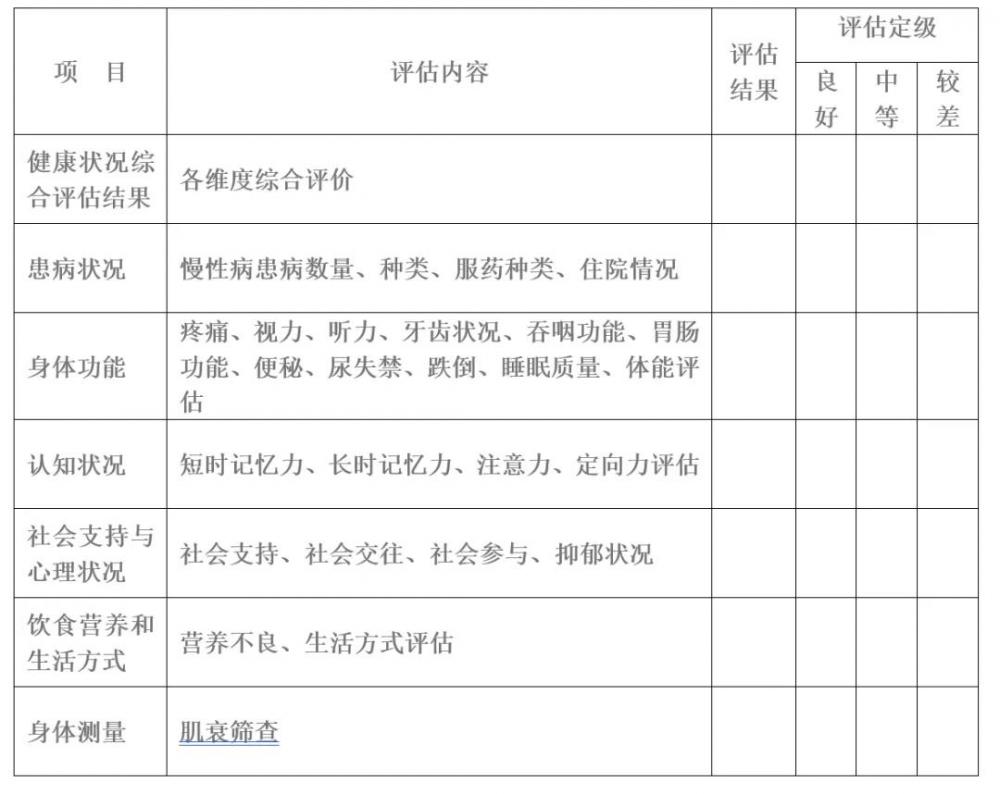
即主要包括項目名稱、評估內容、評估結果和評估定級。
部分代碼如下:
'''填寫單元格'''
table.cell(0, 0).merge(table.cell(1, 0)) # 合并單元格
table.cell(0, 0).text = "項目"
table.cell(0, 0).paragraphs[0].runs[0].font.bold = True # 加粗
table.cell(0, 0).paragraphs[0].runs[0].font.size = Pt(12) # 字號大小
table.cell(0, 0).vertical_alignment = WD_ALIGN_VERTICAL.CENTER # 垂直居中
table.cell(0, 0).paragraphs[0].paragraph_format.alignment= WD_ALIGN_PARAGRAPH.CENTER # 水平居中
table.cell(0, 1).merge(table.cell(1, 1)) # 合并單元格
table.cell(0, 1).text = "評估內容"
table.cell(0, 1).paragraphs[0].runs[0].font.bold = True # 加粗
table.cell(0, 1).paragraphs[0].runs[0].font.size = Pt(12) # 字號大小
table.cell(0, 1).vertical_alignment = WD_ALIGN_VERTICAL.CENTER # 垂直居中
table.cell(0, 1).paragraphs[0].paragraph_format.alignment= WD_ALIGN_PARAGRAPH.CENTER # 水平居中
table.cell(0, 2).merge(table.cell(1, 2)) # 合并單元格
table.cell(0, 2).text = "評估結果"
table.cell(0, 2).paragraphs[0].runs[0].font.bold = True # 加粗
table.cell(0, 2).paragraphs[0].runs[0].font.size = Pt(12) # 字號大小
table.cell(0, 2).vertical_alignment = WD_ALIGN_VERTICAL.CENTER # 垂直居中
table.cell(0, 2).paragraphs[0].paragraph_format.alignment= WD_ALIGN_PARAGRAPH.CENTER # 水平居中
table.cell(0, 3).merge(table.cell(0, 5)) # 合并單元格
table.cell(0, 3).text = "評估定級"
table.cell(0, 3).paragraphs[0].runs[0].font.bold = True # 加粗
table.cell(0, 3).paragraphs[0].runs[0].font.size = Pt(12) # 字號大小
table.cell(0, 3).vertical_alignment = WD_ALIGN_VERTICAL.CENTER # 垂直居中
table.cell(0, 3).paragraphs[0].paragraph_format.alignment= WD_ALIGN_PARAGRAPH.CENTER # 水平居中
table.cell(1, 3).text = "良好"
table.cell(1, 3).paragraphs[0].runs[0].font.bold = True # 加粗
table.cell(1, 3).paragraphs[0].runs[0].font.size = Pt(12) # 字號大小
table.cell(1, 3).vertical_alignment = WD_ALIGN_VERTICAL.CENTER # 垂直居中
table.cell(1, 3).paragraphs[0].paragraph_format.alignment= WD_ALIGN_PARAGRAPH.CENTER # 水平居中
table.cell(1, 4).text = "中等"
table.cell(1, 4).paragraphs[0].runs[0].font.bold = True # 加粗
table.cell(1, 4).paragraphs[0].runs[0].font.size = Pt(12) # 字號大小
table.cell(1, 4).vertical_alignment = WD_ALIGN_VERTICAL.CENTER # 垂直居中
table.cell(1, 4).paragraphs[0].paragraph_format.alignment= WD_ALIGN_PARAGRAPH.CENTER # 水平居中
table.cell(1, 5).text = "中等"
table.cell(1, 5).paragraphs[0].runs[0].font.bold = True # 加粗
table.cell(1, 5).paragraphs[0].runs[0].font.size = Pt(12) # 字號大小
table.cell(1, 5).vertical_alignment = WD_ALIGN_VERTICAL.CENTER # 垂直居中
table.cell(1, 5).paragraphs[0].paragraph_format.alignment=
數據計算與匹配整合
(1)數據清洗:
首先要讀取數據,其中包括數據的清洗,即Excel日期數據和標準日期格式不匹配的問題,需要使用datetime轉成標準時間:
workbook = load_workbook(u'./data.xlsx') #找到需要xlsx文件的位置
booksheet = workbook.active #獲取當前活躍的sheet,默認是第一個sheet
rows = booksheet.rows
index=None
for row in rows:
index = [col.value for col in row]
break
dct = {j:i for i,j in enumerate(index)}
for i,row in enumerate(rows):
#一個人的資料
one_person =[col.value for col in row]
#計算年齡
birth=one_person[dct['bd']]
age=None
#now設置為問卷調查的日期
now =datetime.date(2020,7,15)
if now.month < birth.month:
age = now.year - birth.year - 1
if now.month > birth.month:
age = now.year - birth.year
if now.month == birth.month and now.day <birth.day:
age = now.year - birth.year - 1
if now.month == birth.month and now.day >birth.day:
age = now.year - birth.year
person_name = one_person[dct['name']]
person_id = one_person[dct['id']]
(2)等級判斷:
首先統計慢性病的數目,然后進行等級判斷即可
#根據1.2統計慢性病數量
sum_disease = one_person[dct['nb2a']]+one_person[dct['nb2b']]++one_person[dct['nb2c']] \
+ one_person[dct['nb2d']] +one_person[dct['nb2e']] +one_person[dct['nb2f']] \
+ one_person[dct['nb2g']] + one_person[dct['nb2h']] + one_person[dct['nb2i']] \
+ one_person[dct['nb2j']] +one_person[dct['nb2k']] + int(len(one_person[dct['nb2l']])!=0) \
+ int(len(one_person[dct['nb2m']])!=0)
#1.患病狀況:')
t22=''
t22=t22+'您共患有'+str(sum_disease)+'種慢性病\n'
#多重用****
is_multi = one_person[dct['nb3']] == 4
if is_multi:
#' 您存在多重用****')
t22 =t22+ '您存在多重用****'+'\n'
#等級判斷
my_list=[]
my_list.append(one_person[dct['nb1']])
my_list.append(one_person[dct['nb3']])
my_list.append(one_person[dct['nb4']])
if 4 in my_list:
#' 您的患病狀況維度等級為:較差')
table.cell(3, 5).text = chr(8730)
table.cell(3, 5).paragraphs[0].runs[0].font.size = Pt(12) # 字號大小
table.cell(3, 5).vertical_alignment = WD_ALIGN_VERTICAL.CENTER # 垂直居中
table.cell(3, 5).paragraphs[0].paragraph_format.alignment= WD_ALIGN_PARAGRAPH.CENTER # 水平居中
elif 3 in my_list:
#' 您的患病狀況維度等級為:中等')
table.cell(3, 4).text = chr(8730)
table.cell(3, 4).paragraphs[0].runs[0].font.size = Pt(12) # 字號大小
table.cell(3, 4).vertical_alignment = WD_ALIGN_VERTICAL.CENTER # 垂直居中
table.cell(3, 4).paragraphs[0].paragraph_format.alignment= WD_ALIGN_PARAGRAPH.CENTER # 水平居中
else:
#' 您的患病狀況維度等級為:良好')
table.cell(3, 3).text = chr(8730)
table.cell(3, 3).paragraphs[0].runs[0].font.size = Pt(12) # 字號大小
table.cell(3, 3).vertical_alignment = WD_ALIGN_VERTICAL.CENTER # 垂直居中
table.cell(3, 3).paragraphs[0].paragraph_format.alignment= WD_ALIGN_PARAGRAPH.CENTER # 水平居中
(3)數據計算:
其中需要根據Excel中的數值進行計算,最后根據計算的結果給出評估。代碼如下:
a = one_person[dct['ng1a']]
b = one_person[dct['ng1b']]
c = one_person[dct['ng2a']]
d = one_person[dct['ng2b']]
if a == None:
a = 12
if b == None:
b = 12
if c == None:
c = 7.5
if d == None:
d = 7.5
print(one_person[dct['ng1a']])
body = ((one_person[dct['ng1a']]+one_person[dct['ng1b']])/2) <12 + \
((one_person[dct['ng2a']] +one_person[dct['ng2b']]) / 2)<7.5
#男 1 女 2
if one_person[dct['sex']] == 1:
leg= ((one_person[dct['ng3a']]+one_person[dct['ng3b']])/2) >= 34
hand=((one_person[dct['ng4a1']]+one_person[dct['ng4a2']]+one_person[dct['ng4b1']]+one_person[dct['ng4b2']])/4) >=28
else:
leg = ((one_person[dct['ng3a']] + one_person[dct['ng3b']]) / 2) >= 33
hand =((one_person[dct['ng4a1']] +one_person[dct['ng4a2']] +one_person[dct['ng4b1']] + one_person[
dct['ng4b2']]) / 4) >= 18
body = body + leg+ hand
#document.add_paragraph('6.身體測量:')
t27=''
if body>=2:
#document.add_paragraph(' 您沒有肌衰弱風險')
t27=t27+'您沒有肌衰弱風險'+'\n'
else:
#document.add_paragraph(' 您具有肌衰弱風險')
t27 = t27 + '您具有肌衰弱風險' + '\n'
compute_correct = int()
a = one_person[dct['nd4a']]
if a is None :
a = 0
b = one_person[dct['nd4b']]
if b is None :
b = 0
c = one_person[dct['nd4c']]
if c is None :
c = 0
d = one_person[dct['nd4d']]
if d is None :
d = 0
e = one_person[dct['nd4e']]
if e is None :
e = 0
compute_correct = (a == 100 - 7) +(b == a - 7) \
+ (c == b - 7 ) \
+ (d == c - 7 ) \
+ (e == d - 7 )
if compute_correct <= 3:
#document.add_paragraph(' 您的注意力和計算力較差')
t24 = t24 + '您的注意力和計算力較差' + '\n'
spot_correct = one_person[dct['nd5a']] + one_person[dct['nd5b']] +one_person[dct['nd5c']] +one_person[dct['nd5d']] \
+ one_person[dct['nd5e']] + one_person[dct['nd5f']] + one_person[dct['nd5g']]
if spot_correct <= 5:
#document.add_paragraph(' 您的定向力較差')
t24 = t24 + '您的定向力較差' + '\n'
(4)表格特殊字符和格式處理:
其中包括用程序在表格中打勾和行列寬的設定。代碼如下:
table = document.add_table(rows=9, cols=6, style='Table Grid')
table.alignment = WD_TABLE_ALIGNMENT.CENTER # 設置表格為居中對齊
table.autofit = True
# 列寬
col_width_dic = {0: 3, 1: 5, 2: 6, 3: 1, 4: 1, 5: 1}
for col_num in range(6):
table.cell(0, col_num).width = Inches(col_width_dic[col_num])
# 行高
table.rows[0].height = Cm(0.8)
table.rows[1].height = Cm(1.5)
#打勾
table.cell(4, 3).text = chr(8730)
table.cell(4, 3).paragraphs[0].runs[0].font.size = Pt(12) # 字號大小
table.cell(4, 3).vertical_alignment = WD_ALIGN_VERTICAL.CENTER # 垂直居中
table.cell(4, 3).paragraphs[0].paragraph_format.alignment= WD_ALIGN_PARAGRAPH.CENTER # 水平居中
table.cell(2, 2).text = ''
table.cell(2, 2).paragraphs[0].runs[0].font.size = Pt(12) # 字號大小
table.cell(2, 2).vertical_alignment = WD_ALIGN_VERTICAL.CENTER # 垂直居中
table.cell(2, 2).paragraphs[0].paragraph_format.alignment= WD_ALIGN_PARAGRAPH.CENTER # 水平居中
(5)多人信息保存:
對每個人的數據單獨保存成一個表單:
for i,row in enumerate(rows):
#一個人的資料
one_person =[col.value for col in row]
document.save('./result/'+str(person_id)+person_name+'.docx')
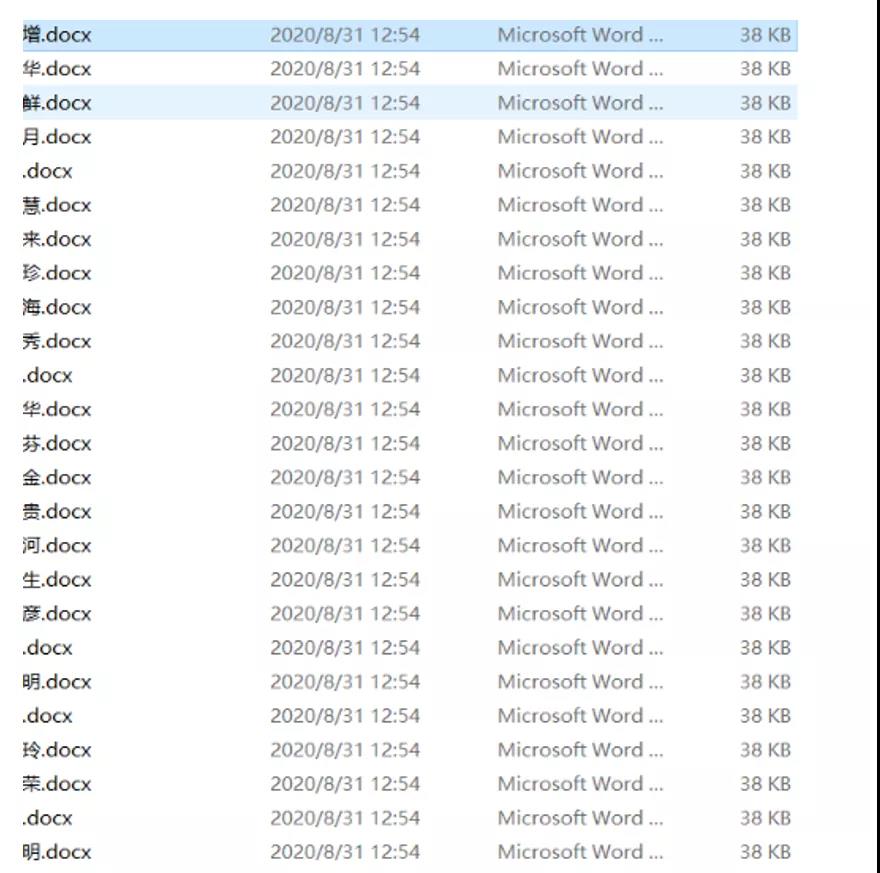
最終一鍵生成了所有人的Word表單,如下圖可見:
源碼地址:
https://pan.baidu.com/s/1YHMPEw9rnWqwxAxgPGTpFw
提取碼:l9gh
*博客內容為網友個人發布,僅代表博主個人觀點,如有侵權請聯系工作人員刪除。
波峰焊相關文章:波峰焊原理